How to Integrate With (Nearly) Any CRM: A Beginner No Code Guide
How to Integrate With (Nearly) Any CRM: A Beginner No Code Guide
CRM integration sounds super technical - like “API work.” In practice, most teams start with workflow tools and a plan.
You can connect Salesforce, Advyzon, and HubSpot to the rest of your stack without writing code. You just need a repeatable method.
This guide focuses on three verticals that live in CRMs all day:
- Financial Services: wealth advisors, RIAs, small brokerages
- Real Estate: brokerages, property management, commercial
- Professional Services: law firms, accounting firms, consulting
You’ll learn the integration patterns that keep working. You’ll also get a step-by-step setup you can follow today.
Why CRM integrations break
Most beginners assume the tool is the problem. The failures usually come from data and workflow design. These are the pain points teams repeat across industries:
-
Duplicate data: “Every time a new client signs up, I have to manually sync between CRM and QuickBooks.”
-
Inconsistent data: “Contacts get updated in HubSpot, but not reflected in our property management tool — leads get cold.”
-
Trigger limitations: “Zapier limits aren’t enough — we need events like ‘deal moved to stage X’ with real logic.”
-
Two-way sync gaps — “It’s easy to push data to CRM, but hard to pull data back into dashboards.”
-
Security and compliance: “We need tools that meet FINRA/SEC standards.”
-
Complex workflows — “We need multi-step underwriting/data enrichment before CRM update.”
You can design around all six. Treat it like any other process. Define inputs, outputs, ownership, and add a feedback loop (monitoring).
The “nearly any CRM” rule: plan for four connection types
Every CRM integration falls into one of these buckets:
- Native integrations: built into the CRM or vendor marketplace.
- Connector tools: Zapier, Make, and similar platforms.
- Webhooks and email parsing: “send data when X happens.”
- File-based: CSV imports, scheduled exports, and SFTP.
If you can’t get an API event, you can still integrate. You may use a webhook, a scheduled export, or a form submission path. “Nearly any CRM” means you always have a fallback.
Pick three systems first, not ten
Beginners try to connect everything at once. Start with a triangle:
- Your CRM (Salesforce, Advyzon, or HubSpot)
- A system of record (accounting, property management, case management)
- A communication tool (email, calendar, SMS)
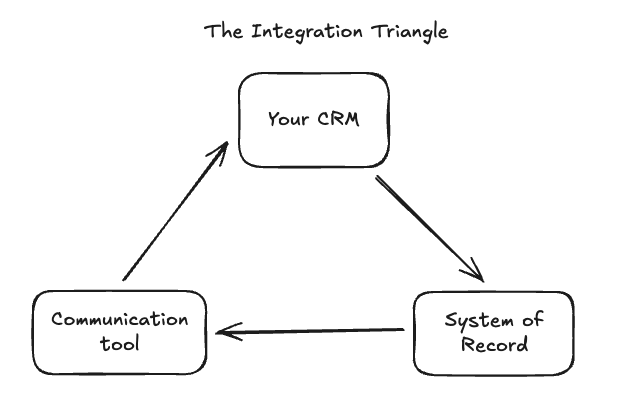
This triangle covers most manual work. It also reveals where duplicates and drift come from.
Choose your “source of truth” per field
Integrations fail when two systems compete to “own” a value. Decide ownership at the field level. Examples that work well:
- Email and phone: CRM owns it, other apps read it.
- Invoice status: accounting owns it, CRM reads it.
- Pipeline stage: CRM owns it, downstream systems react.
- Address: pick one owner, then enforce it. Write this down as a simple list. Keep it short. It will save you weeks.
The most common no-code stacks teams use
Across small and mid-size teams, these patterns show up repeatedly:
- Zapier for quick wins and broad app coverage.
- Make for branching logic, data shaping, and lower-level control.
- n8n for self-hosting, custom connectors, and strict data handling. Most teams start with Zapier. They move complex flows to Make or n8n later. That migration path is normal.
A repeatable method to integrate with any CRM
1) Map the workflow in plain language
Write one sentence per step. Avoid tool names at first. Example:
- When a lead submits the website form > Create or update the contact in CRM > Create an onboarding task for the team > Send a welcome email > Notify the advisor or agent

This becomes your automation specification aka spec.
2) Define the unique identifier you will match on
This is the number one fix for duplicates. Common identifiers:
- Email address for B2B leads
- Phone number for inbound calls
- External ID from a portal or intake form
- CRM Contact ID stored in the other app
Note: If you can, store the CRM record ID in the other system. That makes two-way sync much safer.
3) Normalize your inputs before they hit the CRM
CRMs accept messy data. That doesn’t mean you should send it.
Normalize:
- Phone numbers to E.164 format (A U.S. number (216) 208-0460 becomes +12162080460)
- State and country values to consistent codes
- Company names with basic trimming (such as trailing white space)
- Date fields to ISO format (YYYY-MM-DD for dates and HH:mm:ss for times)
Most no-code tools can do this with built-in format steps.
4) Use “find or create” patterns everywhere
Your flow should usually do:
- Find contact by unique field > If found, update > If not found, create This is the practical cure for duplicates. It also makes retries safe.
5) Design for two-way sync carefully
Two-way sync sounds helpful. It can also create update loops. Use safeguards:
- Only sync specific fields back
- Add a “Last Synced By Automation” field
- Ignore updates made by the automation user
- Sync in one direction unless you truly need both Two-way sync is a feature you earn. Start with one direction.
6) Add error handling and a retry plan
Most workflows break on edge cases:
- Missing required fields
- Invalid emails
- Rate limits
- Permission errors At minimum, do this:
- Send failures to a shared Slack or email inbox
- Log the payload that failed
- Create a “Needs Review” task in the CRM
7) Make it observable for non-technical users
Observability sounds advanced. For no-code teams, it’s simple visibility. Add:
- A dashboard of runs and failures inside the automation tool
- A daily digest of errors
- A “Sync Status” field on the CRM record When support asks “what happened,” you’ll have answers.
A practical example: one workflow that works across industries
This is a common “lead to onboarding” automation. It maps cleanly to Salesforce, Advyzon, or HubSpot.
Goal
When a new lead arrives, create or update a CRM contact. Then create follow-up tasks and notifications.
What you need
- Your CRM account
- A form tool or lead source (website form, Typeform, Google Forms)
- An automation tool (Zapier is a common starting point)
Steps (tool-agnostic)
- Trigger: new form submission or new lead event
- Formatter: normalize phone, parse name, standardize state
- Find contact: search CRM by email
- Upsert: update if found, else create
- Create task: “Call within 15 minutes” or “Send intake packet”
- Notify: post to Slack or email the assigned owner
- Write-back: store CRM Contact ID in the lead system
Example webhook payload you might pass between steps
This is the shape you’ll see in most tools:
{
"first_name": "Avery",
"last_name": "Jordan",
"email": "avery@example.com",
"phone": "+14155551212",
"source": "Website form",
"interest": "Retirement planning",
"notes": "Wants a call next week"
}
Keep payloads small. Add fields over time. That makes debugging easier.
CRM notes: Salesforce, Advyzon, and HubSpot
Salesforce
Salesforce can model almost anything. That flexibility creates choice overload for beginners. Start with standard objects and only add custom fields you can maintain. What works:
- Use Leads and Contacts intentionally, not both randomly.
- Store external IDs for safe syncing.
- Lock down permissions for automation accounts.
Advyzon
Advyzon is often connected to onboarding, reporting, and client service workflows. The practical integration need is consistent client data across tools. Start here:
- Decide which system owns household and account fields.
- Track client status changes with clear stages.
- Keep compliance in mind for notes and attachments.
HubSpot
HubSpot is popular because it connects easily to forms and email. The risk is unstructured properties and duplicated companies. Good habits:
- Define required properties for lifecycle stages.
- Create clear pipelines for each service line.
- Enforce domain-based company matching when possible.
Industry playbooks: what to automate first
Financial services: reduce manual onboarding and compliance drift
Teams often automate intake, meeting prep, and service tickets. You want clean data and auditable steps. High-ROI workflows:
- New prospect intake form to CRM contact + task
- Calendar booking to CRM activity + meeting notes template
- Client onboarding checklist creation when stage changes
- Fee and invoice status synced from accounting to CRM
- Compliance-friendly logging of client touchpoints Security habits that help:
- Use least-privilege automation users
- Avoid sending sensitive notes through email steps
- Log changes with timestamps and actor fields This is where the quote lands hardest: “We need tools that meet FINRA/SEC standards.”
Treat that as a design constraint from day one.
Real estate: route leads fast and keep listings consistent
Real estate workflows are speed-sensitive. You also deal with many systems: lead sources, property management, and marketing tools. High-ROI workflows:
- Lead source to CRM with dedupe and assignment rules
- “Deal moved to stage” to SMS and task creation
- Property updates to marketing channels via scheduled sync
- Tenant or buyer inquiries to ticketing and response SLA tracking
- Underwriting or enrichment steps before CRM updates This is the pain point to design around: “We need multi-step underwriting/data enrichment before CRM update.”
Make and n8n often help here because you’ll shape data. You’ll also branch logic based on property type or region.
Professional services: connect intake, delivery, and billing
For law firms, accounting firms, and consultancies, the CRM often feeds a matter, engagement, or project system. The workflow needs clean handoffs. High-ROI workflows:
- New lead to conflict check or intake questionnaire
- Signed engagement to project creation and internal tasks
- Time tracking or billing status synced back to CRM
- Client health signals pushed into CRM for renewal tracking
- Dashboard updates pulled from CRM into reporting tools This quote captures the reporting gap: “It’s easy to push data to CRM, but hard to pull data back into dashboards.”
Solve it with scheduled exports and “sync status” fields. Then build your dashboard on stable identifiers.
How to handle the common pain points
Duplicate data: pick one match key, then enforce it
- Pick email or phone as the primary key.
- Use “find or create” on every run.
- Store the CRM record ID externally.
- Add a human review queue for edge cases. “Every time a new client signs up, I have to manually sync between CRM and QuickBooks.”
Manual syncing is usually a missing identifier problem.
Inconsistent data: define ownership and stop overwriting
- Choose a source of truth per field.
- Only sync owned fields in each direction.
- Add a “last updated by” indicator when possible. “Contacts get updated in HubSpot, but not reflected in our property management tool — leads get cold.”
That’s often a one-way sync with no backfill plan.
Trigger limitations: use webhooks and scheduled checks
Some CRMs expose limited events in no-code tools. You still have options:
- Use CRM webhooks when available
- Use scheduled searches like “updated in last 15 minutes”
- Use stage-change reports as triggers
- Use email parsing for “system notifications” as a fallback “Zapier limits aren’t enough — we need events like ‘deal moved to stage X’ with real logic.”
Stage changes are where you earn value. Spend time here.
Lack of two-way integration: add write-backs early
If you need dashboards, you need stable links:
- Write the CRM record ID into the other app
- Write the external system ID into the CRM
- Sync status fields like “Invoice Paid” back to CRM “It’s easy to push data to CRM, but hard to pull data back into dashboards.”
Two IDs solve more than fancy tooling.
Security and compliance: use least privilege and minimize data movement
For regulated teams, keep a short checklist:
- Create a dedicated automation user per tool
- Grant only needed objects and fields
- Avoid syncing sensitive notes unless required
- Store secrets in the automation tool’s vault
- Keep logs and retention aligned with policy “We need tools that meet FINRA/SEC standards.”
Document your data flows. Auditors love diagrams.
Complex workflows: break into small subflows
When workflows grow, split them:
- Intake and validation
- Enrichment
- CRM update
- Notifications
- Post-processing and reporting “We need multi-step underwriting/data enrichment before CRM update.”
Small subflows are easier to test and easier to own.
A beginner checklist before you turn anything on
- Define the workflow in 5 steps or less. Error rates across workflows compound per step, so keep it small. Once it is working you can expand or add additional steps.
- Choose your unique identifier for contacts and companies.
- Decide single source of truth for the most important fields.
- Create a test pipeline or test records in your CRM.
- Run 20 test cases, including weird ones.
- Add an error alert and a manual review process.
- Document what the automation changes. That checklist prevents silent failures.
Getting started today
- Pick one workflow you do every day. Start small. Good candidates are lead routing or onboarding tasks.
- Build a “find or create contact” flow in your automation tool. Add field normalization and required fields next.
- Add one write-back field for the CRM record ID. This reduces duplicates and supports future reporting.
- Turn it on for a limited segment first. Use one team, one region, or one lead source. If you’re exploring automating manual processes and you’re not sure where to start, contact me.
Share your CRM, your top three tools, and one broken workflow. You’ll get a clearer path in one conversation.
Conclusion
Build one reliable flow today. Your next five get easier. The CRM will change. The connector tools will change. The method won’t.
Related Articles
The No-Code Automation Stack for Non-Technical Founders
March 9, 2026
A practical no-code stack for founders: 8 tools in 3 layers, $9-73/month, with a complete lead-to-client workflow. Start automating this week.
5 Automations Every Service Business Should Have by 2026
February 11, 2026
The 5 automations that save service businesses 10+ hours/week. Concrete tools, setup times, and ROI for agencies and consultants.
No-code development in enterprise software
October 17, 2025
How low-code and no-code tools actually work in enterprise environments, based on what I've seen.
If you're wrestling with AI adoption, convention files, or automation architecture, the assessment is the fastest way to get a concrete answer.